
A Guide to Using AI in Screaming Frog (Screaming Frog 20.0)


Screaming Frog recently released a new update, and it’s quite impressive. Here’s what the new update includes:
- Custom JavaScript
- Use cases for Screaming Frog’s Custom JavaScript feature
- Steps to create Custom JavaScript
- Use cases for Screaming Frog’s Custom JavaScript feature
- Crawling with ChatGPT
- How to crawl with ChatGPT in Screaming Frog
- Mobile usability
- How to test mobile usability in Screaming Frog
- N-gram analysis
- How to do n-gram analysis with Screaming Frog 20.0
- Access your local Lighthouse scores
- Carbon footprint
We’ll look at each of these topics from both a technical and a theoretical perspective. First I’ll explain what each one means, then how you can use it in practice with Screaming Frog. Enjoy the read!
Custom JavaScript
Custom JS is essentially lines of JavaScript code you can add to perform a specific function. It lets you extract data or perform actions that the website itself doesn’t offer — and that’s exactly what Screaming Frog is aiming for with this feature.
Custom JavaScript lets you run JavaScript code on every URL you crawl. For example, as in the example below, you can set a content type filter so that a custom JavaScript snippet only runs for certain content types.
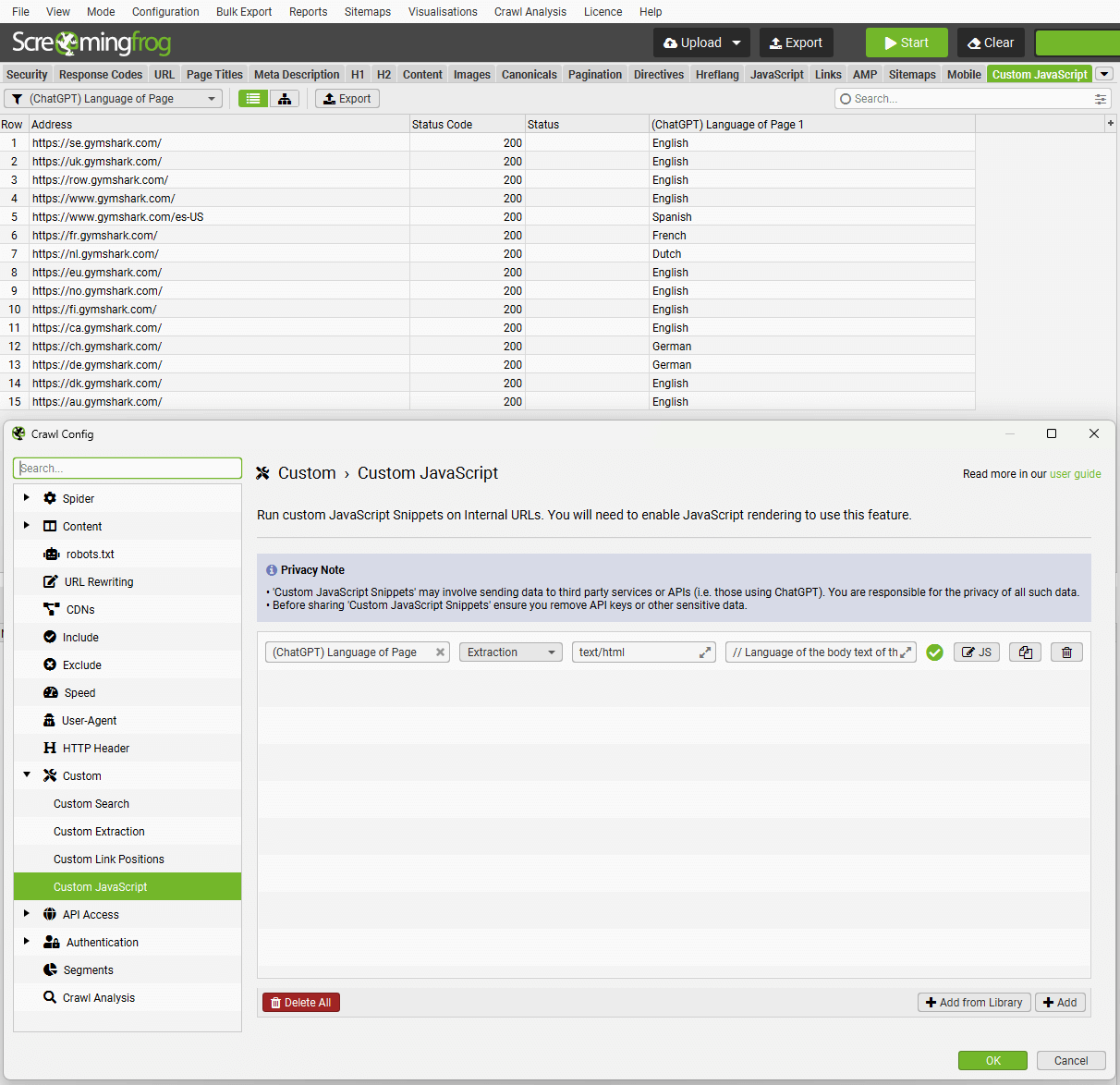
The function set up in the example above shows the language of the body text on a website’s regional pages to identify possible mismatches. With the “Add from Library” button at the bottom right, you can easily access the functions in Screaming Frog’s library.
You can also share the custom JS code you write. Create your own snippets, which are saved to your user library, and export/import the library as JSON to share it.
You can do this with the buttons at the top left of the snippet window that opens when you click “Add from Library.”
Use Cases for Screaming Frog’s Custom JavaScript Feature
Here’s what you can do with these functions:
- Use AI to generate alt text for images.
- Trigger mouseover events — for example, check JS functions that open a menu when you hover over it with your cursor.
- Scroll a page (to crawl some infinite-scroll setups).
- Download and save various content locally (such as images or PDFs).
- Sentiment, intent or language analysis of page content.
- Connect to SEO tool APIs that aren’t integrated yet, such as Sistrix.
- Extract embeddings from page content — a natural language processing (NLP) method that looks particularly relevant for Google’s AI-powered search (SGE at the time).
And of course, you can find much more in the library.
Knowing how to write JavaScript helps when using this feature, but it isn’t a requirement for creating your own snippets. You can adjust Screaming Frog’s templated snippets by following the comments inside them.
Steps to Create Custom JavaScript
Go to “Config > Custom > Custom JavaScript” and click “Add” to create your own JS snippet, or click “Add from Library” to choose a preset snippet.
Screaming Frog snippets come in two types: “Extraction” and “Action.”
- Extraction snippets:
Extraction snippets return a value or a list of values as numbers or strings and show them as columns in the Custom JavaScript tab. Each value in the list is mapped to a column. When an extraction snippet runs, the page stops loading all resources and starts running the snippet. The SEO Spider can’t finish crawling the page until the snippet completes, and long-running snippets may time out, leaving the page uncrawled. Extraction snippets can also download URLs and write to a text file — for example, there’s a sample snippet that downloads all images on a page and another that adds all adjectives on a page to a CSV file.
- Action snippets:
Action snippets don’t return any data; they only perform actions. For example, there’s a sample snippet that scrolls down a page so that lazy-loaded images get crawled. When an action snippet runs, it starts while the page continues loading resources. However, you need to set a timeout value in seconds for the snippet. When the timer expires, the SEO Spider completes the page crawl.
There are some important points to know when using these two snippet types. First, you can run multiple snippets at the same time, but keep in mind that your crawl speed will be affected depending on the number and type of snippets you run.
Also, if you have multiple snippets, all action snippets run before extraction snippets. If you have several action snippets with different timeout values, the SEO Spider will use the highest timeout value among them.
Extraction snippets stop all page loading, so no further requests occur. Action snippets don’t have this limitation, but you need to set a timeout for a healthy crawl. Snippets can access the Chrome Console Utilities API, which lets them use methods such as getEventListeners() that aren’t available to normal JavaScript on a web page. “Trigger mouse events” is one example.
Crawling With ChatGPT
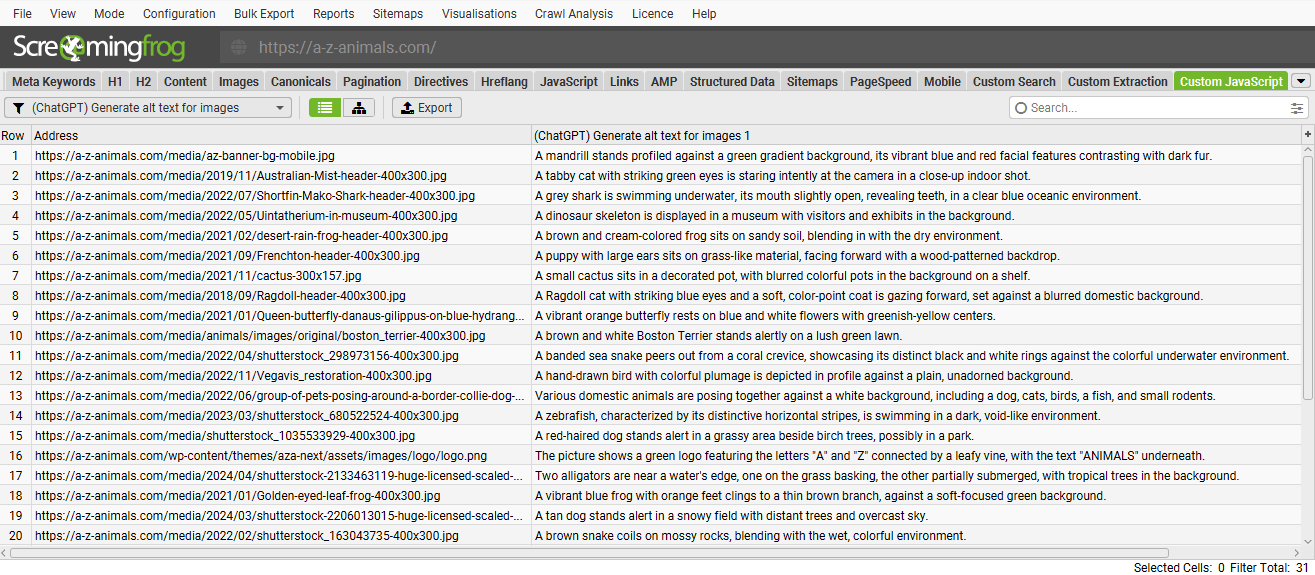
You can select the “(ChatGPT) Template” snippet, open it in the JS editor, add your OpenAI API key and use it to query anything you want against a page during the crawl. You can also adjust the OpenAI model used, the specific content analyzed and more.
For example, it lets you act quickly on fairly low-level tasks such as instantly generating alt text for images, as mentioned in the previous section. Or, if you need to move really fast, you can do the same for meta descriptions or titles.
How to Crawl With ChatGPT in Screaming Frog
The SEO Spider has several preset ChatGPT JavaScript snippets that only require an OpenAI API key.
- Open the Custom JavaScript config. Follow the path mentioned earlier, “Config > Custom > Custom JavaScript,” and click “Add from Library.”
- The “System” tab is a library of preset JavaScript snippets. The ChatGPT snippets start with “(ChatGPT).” Choose the one you need.
- Then click the edit button to the right of the line you added and enter your API key in place of “your_api_key_here” in the code (line 25).
- Enable JavaScript rendering under “Config > Spider > Rendering.”
Follow these four steps to connect your Screaming Frog tool with OpenAI.
Mobile Usability
With the Lighthouse integration, we can now audit mobile usability at scale.
A new “Mobile” tab has been added, with filters for common mobile usability issues we often run into, such as viewport not set, tap targets not sized appropriately, content not sized correctly and illegible font sizes.
How to Test Mobile Usability in Screaming Frog
Don’t forget to connect to the PSI (PageSpeed Insights) API. You can do this via “Config > API Access > PSI.”
You can bulk export mobile issues via Reports > Mobile.
N-gram Analysis
In SEO, “n-gram analysis” is a method used to examine the frequency and usage patterns of words or word groups (n-grams) in a page’s content. N-grams represent ‘n’ consecutive words; for example, “cat” is a 1-gram (unigram), “black cat” is a 2-gram (bigram) and “very black cat” is a 3-gram (trigram).
N-gram analysis is a powerful strategy used in SEO to optimize content strategies, gain a competitive edge and perform better in search engines. I’ll prepare a more detailed blog post on n-gram analysis — stay tuned!
How to Do N-gram Analysis With Screaming Frog 20.0
With Screaming Frog, you can now analyze phrase frequency using n-gram analysis on the pages of a crawl, or in aggregate across various pages of a website. To enable this, ‘Store HTML / Store Rendered HTML’ must be enabled under ‘Config > Spider > Extraction.’ N-grams can then be viewed in the lower N-grams tab.
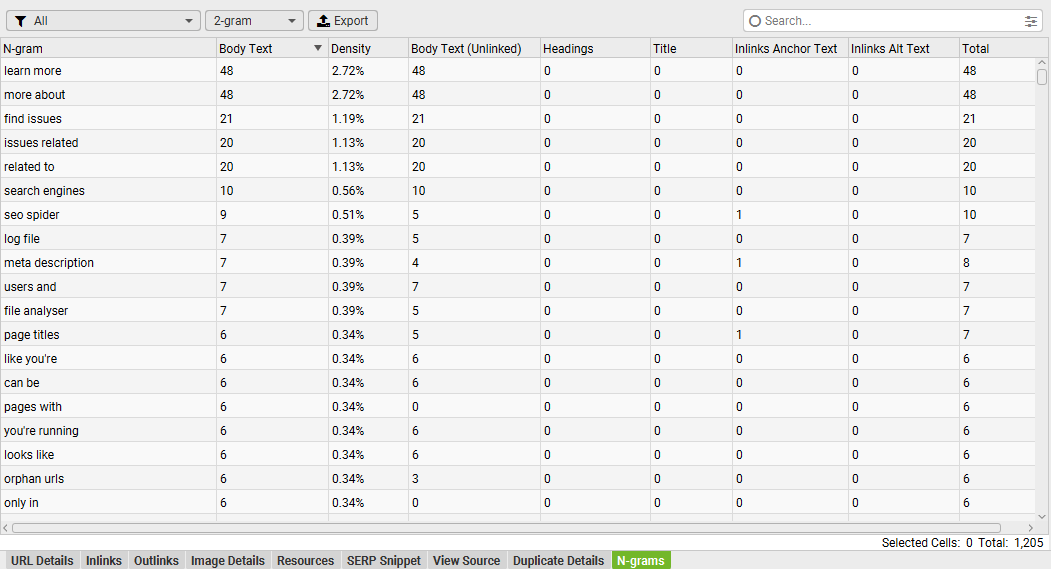
Even if some of your keywords aren’t as popular as they used to be, having the words you want to rank for on the page generally helps SEO.
This analysis can help you improve on-page alignment, identify keyword gaps and find new strategic ways to spot internal linking opportunities.
Access Your Local Lighthouse Scores
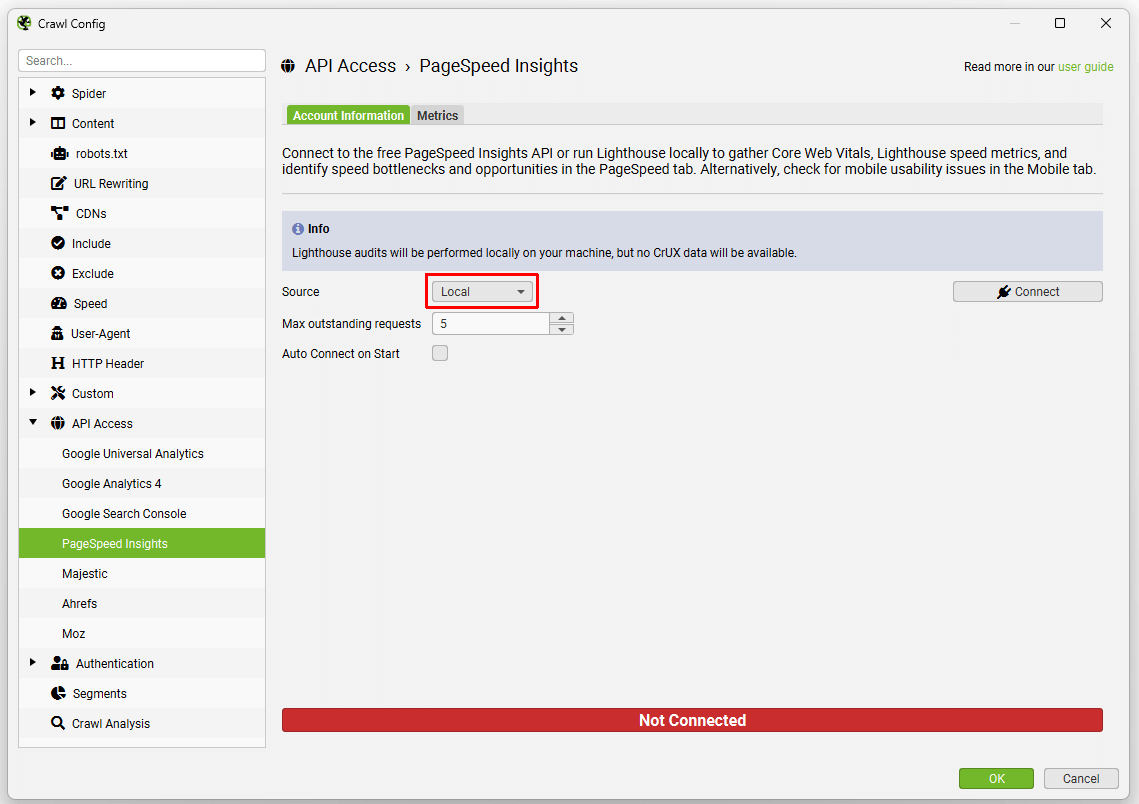
Another new Screaming Frog feature lets you test your Lighthouse scores locally. Simply select ‘Local’ as the source under “Config > API Access > PSI” to access these scores.
Carbon Footprint
Like Log File Analyser version 6.0, the SEO Spider now automatically calculates carbon emissions for each page using the CO2.js library.
Alongside the carbon calculation, each URL gets a carbon rating, and there’s a “Carbon Rating” section under the “Validation” tab.
The digital carbon rating system is a method for assessing the environmental impact of web pages. Ratings range from A to F, with A indicating the lowest and F the highest carbon emissions. Ratings such as D, E and F indicate that a page needs improvement in terms of sustainability; they are usually directly tied to page weight, data center energy use, network transfer and processing on devices, so their carbon footprint is high. These ratings guide developers and site owners in making their pages more energy efficient.
With these updates and more, Screaming Frog seems to have outdone itself. The tool every SEO uses looks set to keep improving. Wishing everyone days full of visitors and AI!
Sources:
https://www.screamingfrog.co.uk/seo-spider-20
https://www.screamingfrog.co.uk/seo-spider/issues/validation/high-carbon-rating
https://www.screamingfrog.co.uk/seo-spider/tutorials/how-to-crawl-with-chatgpt


