
What Is Microsoft Clarity? How to Use It


Microsoft Clarity is a free user behavior analytics tool that helps you understand how users behave on your website. Introduced by Microsoft in October 2020, this next-generation tool lets you see exactly what visitors do on your site. By understanding user behavior, you can make your website better.
Microsoft Clarity Features
Clarity is a very good tool for measuring user behavior. Thanks to its heatmaps in particular, you can get a more detailed picture of what users pay the most attention to on your site, where they focus and where they make dead clicks. Clarity has many features.
Clarity offers you the following:
- Session Recordings
Session recordings let you watch individual users’ movements on your website. They show how users navigate between pages, where they click and how long they stay. Session recordings help you understand users’ experiences on your site and spot potential problems.
- Click Maps
Click maps let you visualize the most and least clicked areas of your site. They help you identify which content attracts users’ attention and which doesn’t, so you can optimize your website’s design and content.
- Troubleshooting
Clarity helps you identify problems users encounter on your site, such as broken links, loading errors or content users struggle to understand. Using these insights, you can make sure users have a smooth experience.
- Goal Conversion Analysis
Goal conversion analysis lets you track specific actions users complete on your site (for example, a purchase, a form submission or an email signup). This analysis can help you increase your conversion rates.
- Automatic Insights
Clarity automatically helps you identify problems and optimization opportunities on your site, which can reduce the time and effort you spend improving your website.
Beyond these, Clarity opens the door to more detailed analysis. Unlike other analytics tools:
- User-focused analysis: Clarity gives you a realistic view of users, not just numbers like page views. You can see how they navigate your site, where they click and where they run into problems.
- Free to use: Clarity is completely free, so there’s no risk in trying it.
- Easy setup: Clarity is very easy to set up and use. All you need to do is add a code snippet to your website.
I recommend using Clarity to make your analysis more effective. So how do you set it up?
How to Set Up Microsoft Clarity
Setting up and using Microsoft Clarity is very easy. Just like other SEO tools, all you need to do is add the code snippet it gives you to your website.
Follow these steps to set up Clarity:
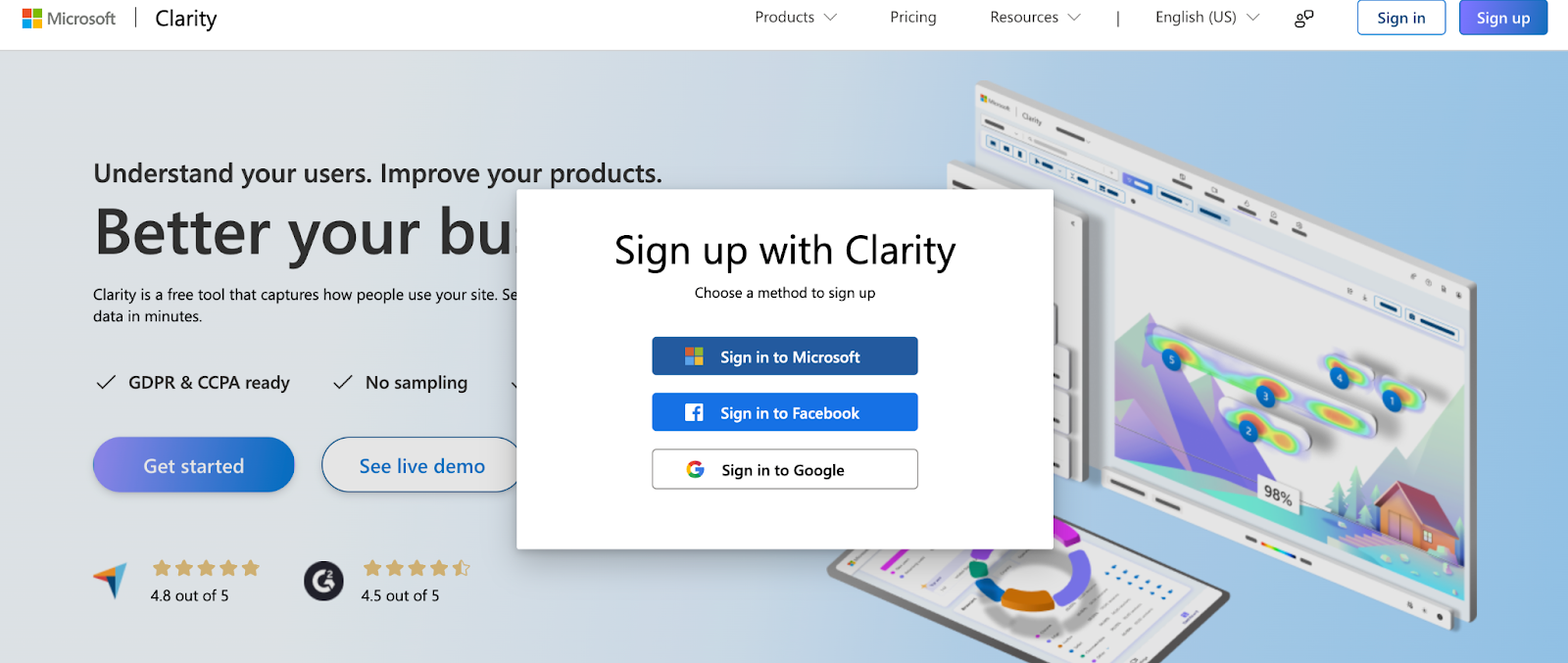
- Go to the Clarity website and create an account.
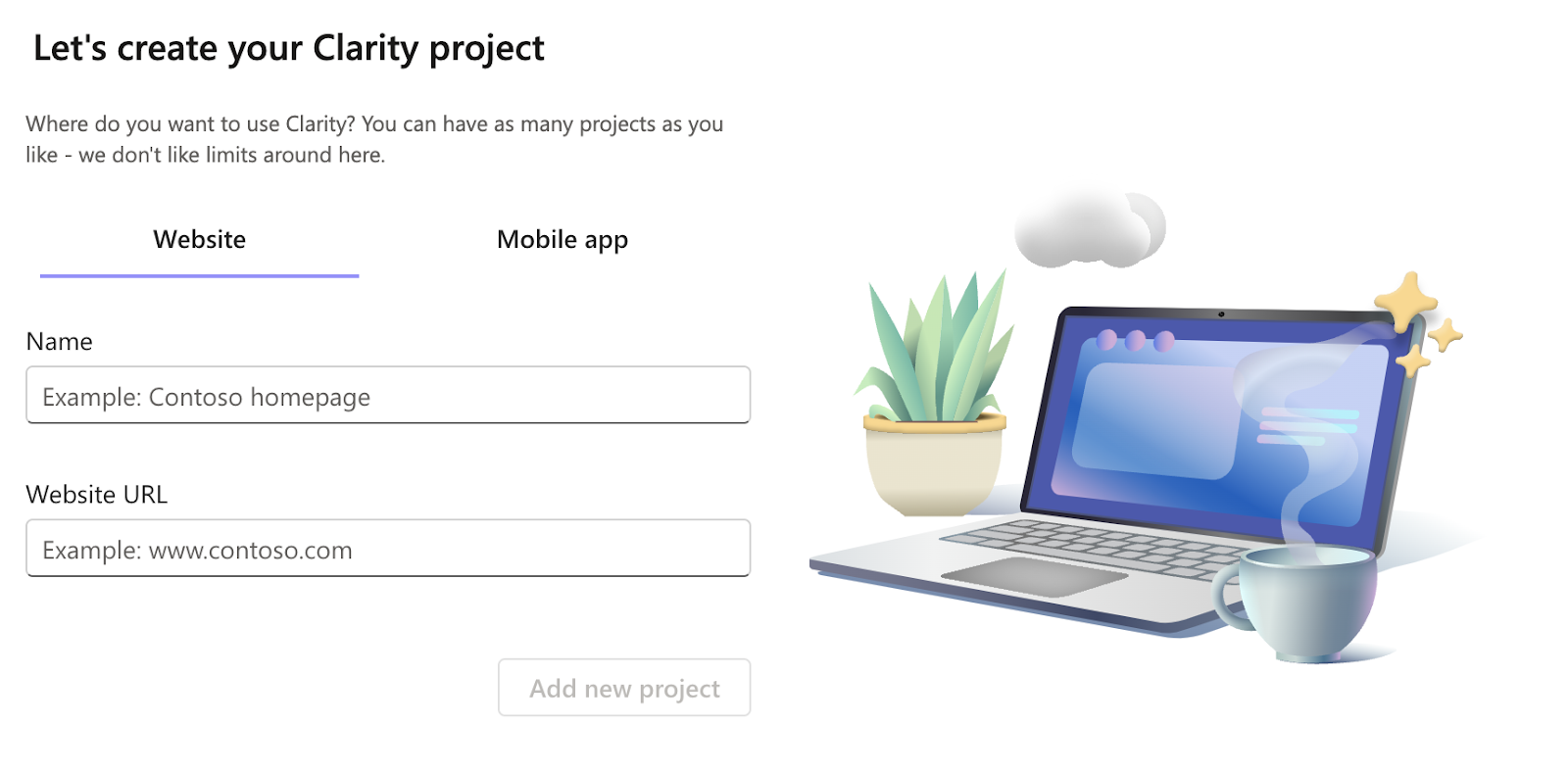
- Create your project.
- Add the code snippet to your website.
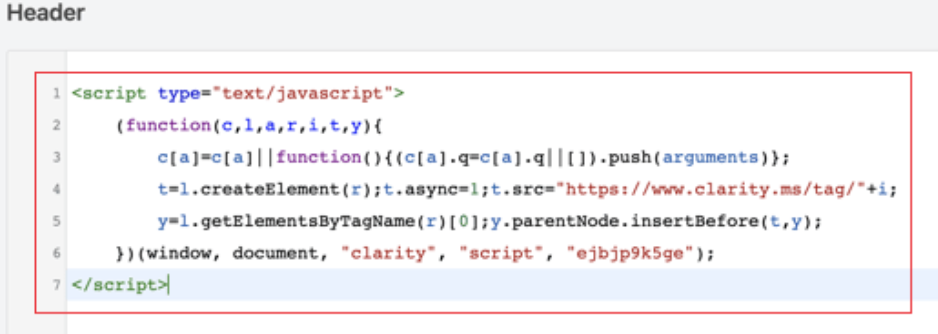
Once you’ve added the code snippet, you can start using Clarity. Visit your website, then sign in to the Clarity dashboard.
In the Clarity dashboard, you’ll find various reports and analyses showing your website’s user behavior. You can use them to get ideas for improving your website and user experience. You can also customize Clarity.
To do this, go to the “Settings” tab in the Clarity dashboard. There you can:
- Enable or disable session recordings.
- Enable or disable click maps.
- Enable or disable troubleshooting tools.
- Set up goal conversions.
- Customize the code snippet.
Benefits of Using Microsoft Clarity
As I mentioned, Clarity is free and very functional for analyzing user behavior in detail. Some of its benefits are:
Improving user experience
Clarity helps you understand users’ experiences on your site. You can observe where users pay the most attention, where they get stuck and what they prefer — both through session recordings and heatmaps.
Troubleshooting
Clarity helps you identify the problems users encounter on your site, which helps you give them a smooth experience.
Clarity is a useful tool for website owners, developers and marketers. If you want to understand how people use your site, you should definitely try it.
For example, with Clarity you can:
- Watch how users navigate your website.
- See which pages users visit most.
- Find out which pages users have problems on.
- Use this information to make your site more user-friendly and attractive — for example, by focusing more on frequently visited pages or improving the pages where users struggle.
Increasing conversion rates
Clarity lets you track specific actions users complete on your site, which can help you increase conversion rates.
For example, you can use Clarity to track the purchase rate on your e-commerce site or, if you’ve launched an email newsletter, the signup rate. You can also track how many visitors fill out your forms.
In short, you can use this information to make changes that increase conversions — for example, by simplifying the checkout process or making forms more user-friendly.
Optimizing ad effectiveness
Clarity can help you make your ads more effective by using data on how users behave on your site.
For example, you can easily take the following actions to improve ad effectiveness:
- Track how often users click on specific ads.
- Track users’ behavior on your site after they see your ads.
- Use this information to make your ads more relevant and engaging, run more relevant ads or make your ads more visible.
Website Optimization Tips Using Microsoft Clarity Data
In this section, I’ll share tips on using Clarity more effectively for SEO. With these tips, you can make much better use of Clarity’s features in your SEO work.
Use session recordings
Session recordings let you watch individual users’ movements on your site, helping you understand their experience and spot potential issues. For example, you can see which pages users visit most, where they have problems and how much time they spend on your site. Use this information to make your site more user-friendly and attractive.
Use click maps
Click maps visualize the most and least clicked areas of your site and help you identify which content draws attention. For example, you can see click rates on specific CTAs and content, and how users navigate your site. Use this information to optimize your design and content.
Track goal conversions
Goal conversions are specific actions users complete on your site, such as a purchase, a form submission or an email signup. By tracking them, you can monitor your conversion rates and make changes to increase them — for example, by simplifying checkout or making forms more user-friendly.
Use automatic insights
Clarity automatically helps you identify problems and optimization opportunities, reducing the time and effort needed to improve your site. For example, you can see where users run into problems, how they navigate and which pages they visit most — and use that to make your site more user-friendly and attractive.
Microsoft Clarity is a powerful tool for improving your website and user experience. It helps you understand how your site is used and detect potential problems. Wishing everyone days full of visitors.


